Pivotal Tracker Help
Getting Started
What is Pivotal Tracker?
Tracker is a simple, story-based project planning tool that allows teams to collaborate and react instantly to real-world changes. It's based on agile software development methods, but it can be used on a variety of types of projects. Tracker frees you up to focus on getting things done, without getting bogged down keeping your plans in sync with reality.
When using Tracker for your projects, it helps to understand a little about Agile methodology, particularly Extreme Programming, or XP. There are a number of good resources on the subject available, including this introduction to XP.
The Dashboard
When you first sign in to Tracker, you'll find yourself on the dashboard. This page shows you all of your projects, recent activity, and important Tracker news and messages.
If you've already been invited to a project, you'll see that project in the project list. Clicking on the project will take you to the project's stories. Creating a new project is easy; click the Create Project button on the dashboard, enter a project name, and hit enter.
The Project Page
You'll spend most of your time in Tracker on the project page, working with stories. You can switch between projects by using the project drop-down in the top-left corner, and you can also turn on project tabs from the View menu.
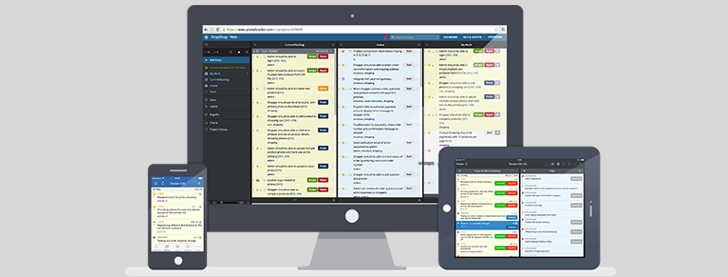
Within a project, you'll work with stories in several different panels. When you first open a project, you will see two panels open: the current panel and the backlog. The current panel shows the iteration currently in progress. The backlog shows iterations that will occur in the future. Each iteration holds stories whose point total adds up to the team's velocity. Therefore, the current panel contains stories that are expected to be completed in the current iteration.
Other panels can be opened by clicking on corresponding buttons in the panel button bar, by using the View menu, or with keyboard shortcuts (type '?' to see them).
- Done - the iterations that occurred in the past. Done iterations contain stories that have been accepted, in the order in which they were accepted.
- Icebox - stories that have yet to be prioritized. Stories can stay in the icebox indefinitely, while they are 'on ice'. When ready, a story in the icebox can be prioritized by dragging it into the current panel or backlog panel.
- Releases - the project's release markers. A story can be dragged onto a release in this panel to move it into that release.
- My Work - stories that are owned by you (you're working on them), and stories that you requested which are ready to be accepted.
- History - updates that have been made to stories.
- Charts - release burn-down chart, velocity by iteration, current iteration burn-up, and a breakdown of story types.
- Labels & Searches - clickable list of labels in the project, as well as your saved searches.
Creating Stories
A story represents one concrete deliverable or task. To create a new story in Tracker, click the Add Story button at the top of the project page (or hit the 'a' key). This will open a story detail window in the icebox. The only thing that is required to save a new story is the title. Everything else is optional, and can be captured later. The story title is a brief, one-sentence description of a concrete, independent requirement, such as "A manager can approve a purchase order". To elaborate, use the description field.
The user who created the story becomes the "requester", but that can be set to any project member. Ideally, this is someone who speaks for (or is) the project's customer, and can make decisions about story requirements and acceptance criteria.
The owner is the person who will be responsible for implementing the story (normally a developer). It's not necessary to identify an owner when the story is initially created - Tracker allows anyone to start a story. On a typical XP project, team members start stories from the current iteration (or the top of the backlog) when they finish work on the last story.
You can choose a point estimate in the estimate drop-down. This is a relative measure of complexity and risk. New stories are un-estimated, and can be left that way until later. In fact, stories are often estimated shortly before they are started; that is when you know the most about what they will entail.
The label actions field allows you to tag a story with labels. Choose an existing label or create a new one. The drop-down also allows you to remove labels.
You can come back to a story and change any of its characteristics later.
Commenting on Stories
Tracker facilitates discussions about a story through comments. Any team member can comment. Comments are a trail of the thinking around a story, and can't be deleted. All story commenters receive email notifications, unless they turn them off.
Estimating
Stories are estimated in points, which are a relative, team-specific metric representing the effort it will take to complete a given story. When starting out with Tracker, it helps to ground a point in something concrete - for example, how much can be done in an ideal day, or a typical small feature. Over time, points become more intuitive.
When estimating a story, you choose a value from the project's point scale. Tracker projects have a point scale (you can choose from 3 scales). This is to encourage consistency in the granularity of stories. In general, most stories should be small (1-2 points). Stories with larger estimates may hide unknown complexity, and should ideally be broken down further.
The easiest way to estimate stories is to click an estimate button on a story. Only un-estimated stories have these buttons; once a story is estimated, you'll see a "Start" button instead. To change the estimate of a story, expand it (to show its details), and change the value in the estimate drop-down.
Types of Stories
There are four types of stories in Tracker: Features, Chores, Bugs, and Releases.
Features are stories that provide verifiable business value to the team's customer. Examples of features include "add a 'special instructions' field to the checkout page", "purchase history should load in half a second", and "add a new method addToInventory to the public API". Features are worth points and therefore must be estimated.
Chores are stories that are necessary, but provide no direct, obvious value to the customer. Examples include "sign up for access to geocoding service" and "Find out why the detailed test suite takes so long". Chores can represent "code debt", and/or points of dependency on other teams.
Bugs represent unintended behavior that can be related to features, for example "login box is wrong color", and "price should be non-negative".
Releases are used to delimit a set of stories comprising a particular set of features. They can be thought of as a milestone, or a point in the backlog that is of some interest, such as when you will be prepared for a certain demonstration or to release updates to your live site.
Prioritization
New stories begin their life in the Icebox, or "on ice". You can rearrange stories in the icebox by dragging them up and down, but the order of stories within the icebox is useful for organizational purposes only.
The backlog holds prioritized stories. Stories at the top of the backlog are the most important, and will be worked on first. To prioritize a story, drag it from the icebox to backlog or the current iteration. There are also striped drop zones at the bottom of each panel. (Sometimes stories move directly into Current when you drop them in the backlog; this is because the number of points that can fit is determined by the project's velocity).
Stories that have been started stay in a group at the top of Current, but you can change priorities for unstarted stories at any time by dragging them anywhere in the current panel or the backlog panel. You can also put an unstarted story back into the icebox.
Story Workflow
At the beginning of a typical day, a developer will pick an unstarted story in the current iteration and click its start button (thereby becoming its owner unless it already has one).
When work on the story is complete, the developer will click the finish button. The "deliver" button will appear; when the product is ready for acceptance testing/evaluation, a team member will click the "deliver" button. This will indicate to the story requester (visually in Tracker and via email) that they can now provide feedback on the story by accepting or rejecting it.
If the story requester (or someone else representing the customer) accepts the story, the story will turn green and move to the top of the current iteration. At the end of the iteration, accepted stories move to the done panel.
If the story is rejected, it will move to the end of the list of stories that are currently in progress. It's state will be set to "rejected", and a "restart" button will appear. This indicates to the owner of the story that more work is needed. When a story is rejected, Tracker prompts the rejector for a reason, which subsequently appears as a comment in the story. The owner of the story is notified by email.
Points & Velocity
A point is a relative, team-specific measure of effort it will take to implement a feature. Tracker allows you to estimate feature stories, using a fixed point scale, configured per-project. Currently, Tracker supports three point scales: 1/2/3, 1/2/4/8, and 1/2/3/5/8. Only features are estimated, since only features contribute to "business value". Bugs and chores are part of normal engineering overhead, and are not normally estimated (this can be enabled for some projects if you wish).
Velocity is a measure of project output. It's the average number of feature story points accepted in the last few iterations (1-4). Tracker calculates velocity automatically, and uses it to predict the number of iterations a given backlog of stories will take to complete.
It's possible to override calculated velocity, and experiment with hypothetical scenarios. Click the VELOCITY link to specify a hypothetical value and see the impact on the backlog or future releases. No other users see the change when you override velocity. You can click revert to revert it back to its true value. Overriden velocities are not stored, so velocity reverts to the calculated value when you reopen the project.
At the beginning of a project, Tracker will use a default value for velocity, as specified in project settings. It will also revert to this default velocity after a number of iterations with 0 accepted points.
Release Deadlines
Tracker allows you to monitor progress toward a fixed date release through the use of release deadlines. To specify a deadline, expand the release story and enter a date in the "deadline" field. Tracker will show this deadline as a thick line in the backlog, at the end of the iteration in which the date falls. As the scope of a particular release (the number of points above the release marker) and project velocity change, the release will move accordingly, but the deadline marker will stay fixed to a particular iteration. If the release marker moves past the deadline, it will turn red. This is a great way to manage scope creep, and experiment with different what-if scenarios.
To remove a deadline from a release, expand the release, and click the "clear" link.
Searching for Stories
Use the search field at the top of the project page to find stories. Tracker will search titles, descriptions, tasks, uploads and comments, and display matching stories. The reveal button can be used to highlight the story in context (for example, in the backlog or the icebox).
Working with Multiple Stories
It's possible to select a number of stories, and perform a few common tasks including move to icebox, move to backlog, and delete. Select stories by clicking on the small square selection box to the right of the story title, and use the Action menu to perform an action. Other actions include application of labels and exporting stories.
More Information
For more information and help, see the Frequently Asked Questions page, as well as our user community discussions.